
Flexible dieting with a free app: your first meal plan
Looking for a free flexible dieting app and a clear way to get started? Follow your first GetYourMacros meal plan from goal setting to grocery shopping, with five steps and screenshots.

Start here: set your goal, budget and preferences, review your first plan, swap the meals you want to change and add the ingredients to your shopping list. Then use the diary to adjust the plan to what you actually eat.
This guide follows the workflow inside GetYourMacros. If you want an introduction to the approach first, read how flexible dieting works. Here we focus on using the app: what the free version includes, which numbers to check and what to review before you cook.
The screenshots show the Italian interface and may feature different plans: their prices do not describe a single shared menu. Button labels and layouts can change with app updates.
1. Flexible dieting with a free app: what is included?
GetYourMacros is free to download on iOS and Android, and you can get started without creating an account. Free does not mean unlimited plan generation or meal swaps: your first plan is included, then the free version lets you generate one weekly plan per month. A plan covers a week; how often you can generate a new one is a separate limit.
| Feature | Free | Premium |
|---|---|---|
| Weekly plan generation | First plan included, then 1 per month | 4 per month |
| Meal swaps | 3 per week | Unlimited |
| AI assists: meal photos and recipe imports | 3 per week, shared | 21 per week, shared |
| Barcode scanning | No quota | No quota |
You can try the basic workflow with the first plan, shopping list and diary. Taking a meal photo is optional: you can search for food or scan its barcode instead. Check your available limits and the Premium price in the app before deciding whether to subscribe.
2. Set your goal, budget and food preferences
Start by answering the questions about your goal, personal measurements and activity. The app uses these answers to estimate calories and macronutrients. If you already have targets you want to follow, you can edit them manually. For a refresher on the difference between calories, protein, carbohydrates and fat, read what macros are.
The questionnaire also asks for your weekly budget, number of meals, diet type and allergens. Choose a budget that fits your routine and select omnivore, vegetarian, vegan or pescatarian. Supermarkets, household size and other preferences can be managed through the plan settings, cart or profile: you do not need to find every option in the initial set of questions.
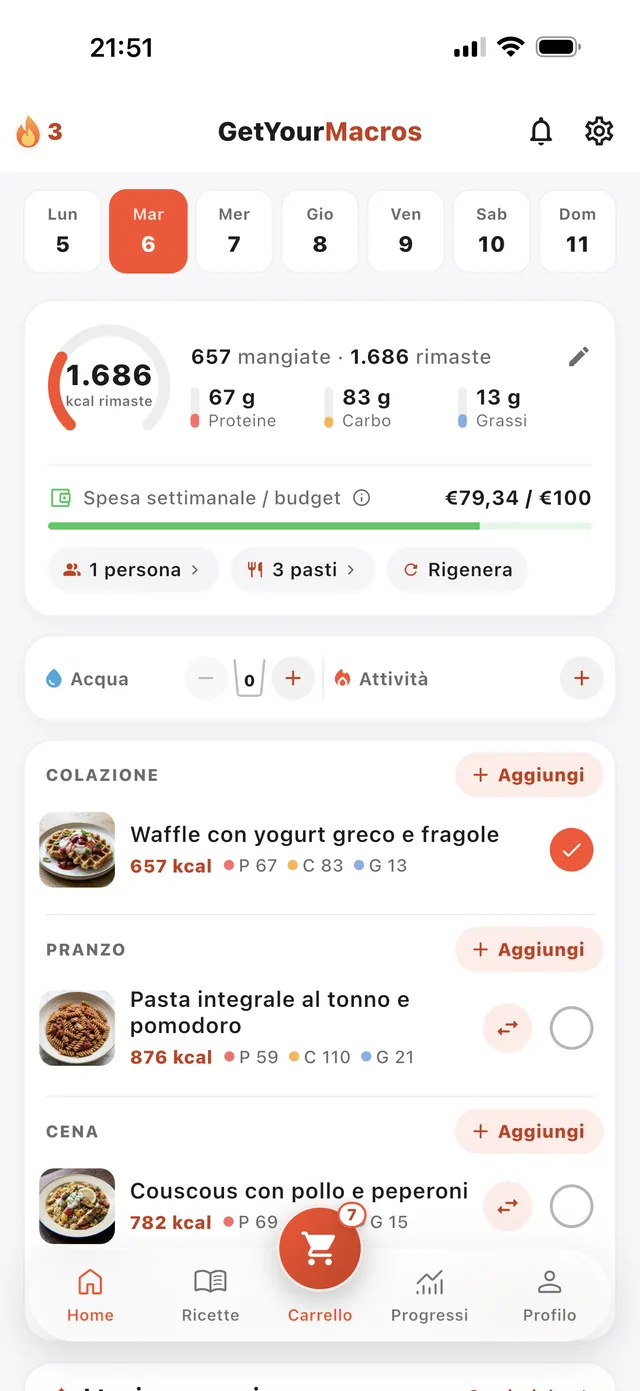
Once you complete the questionnaire, the app prepares your first plan. Open a day on the Home screen and read the meal cards: name, calories, macros and estimated serving cost. Before swapping anything, check the ingredients and whether preparation fits your schedule. Allergen filters help narrow the selection; also check the ingredients and product labels of the foods you will use.
3. Swap a meal and check more than its calories
If you do not like a suggestion, use Swap on the meal card. The app looks for another recipe of the same course and adjusts the serving to match the previous dish’s calories. This is useful when you want a different breakfast or main course without generating a whole new week.
The key distinction is that equal calories do not mean identical macros. One recipe may contain more carbohydrates and less fat, or a different amount of protein. After the swap, read the updated values, ingredients and cost. The app recalculates the macros; it does not promise that every number will stay the same.
For your first try, follow these steps:
- Choose one meal you would like to replace.
- Read its calories, protein, carbohydrates, fat and estimated cost.
- Tap Swap, compare the new card and open the recipe.
- Check the rest of the day and the ingredients you will need to buy.
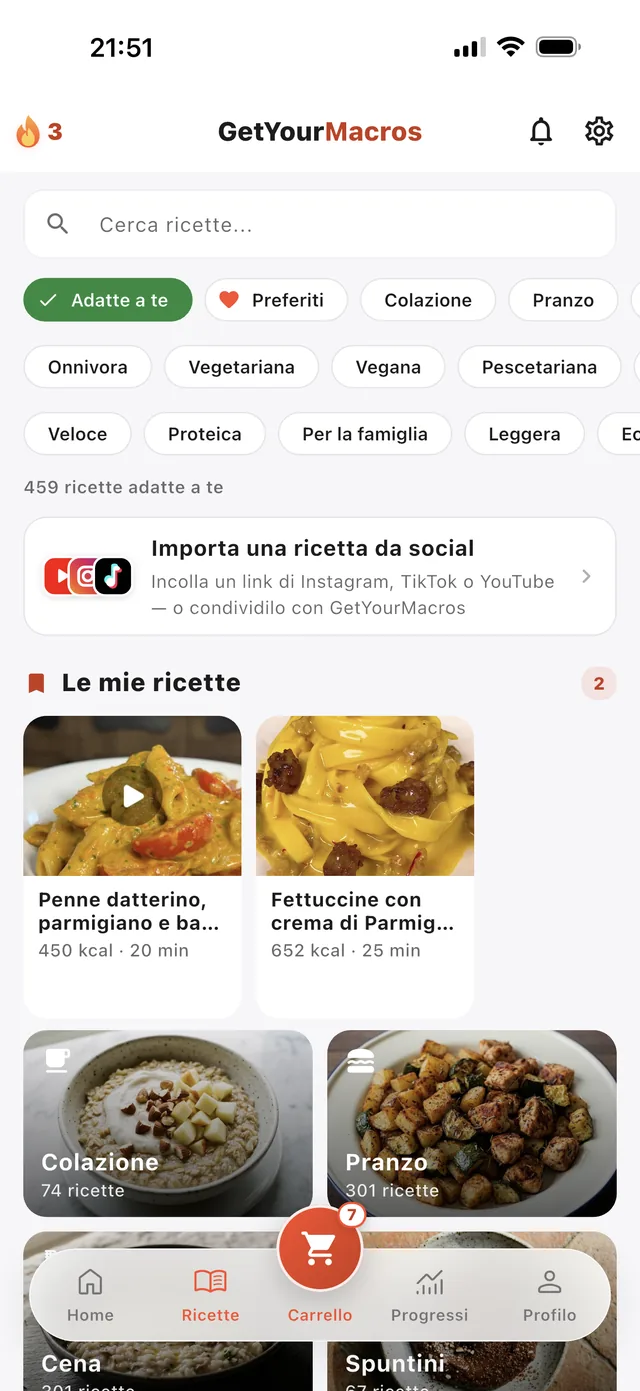
The free version includes three swaps per week, so use them on meals you actually want to change. If there is no suitable alternative, the app will tell you. You can browse the Recipes library for ideas; viewing a recipe does not mean it has already been added to your plan.
4. From meal plan to shopping list: what will you pay?
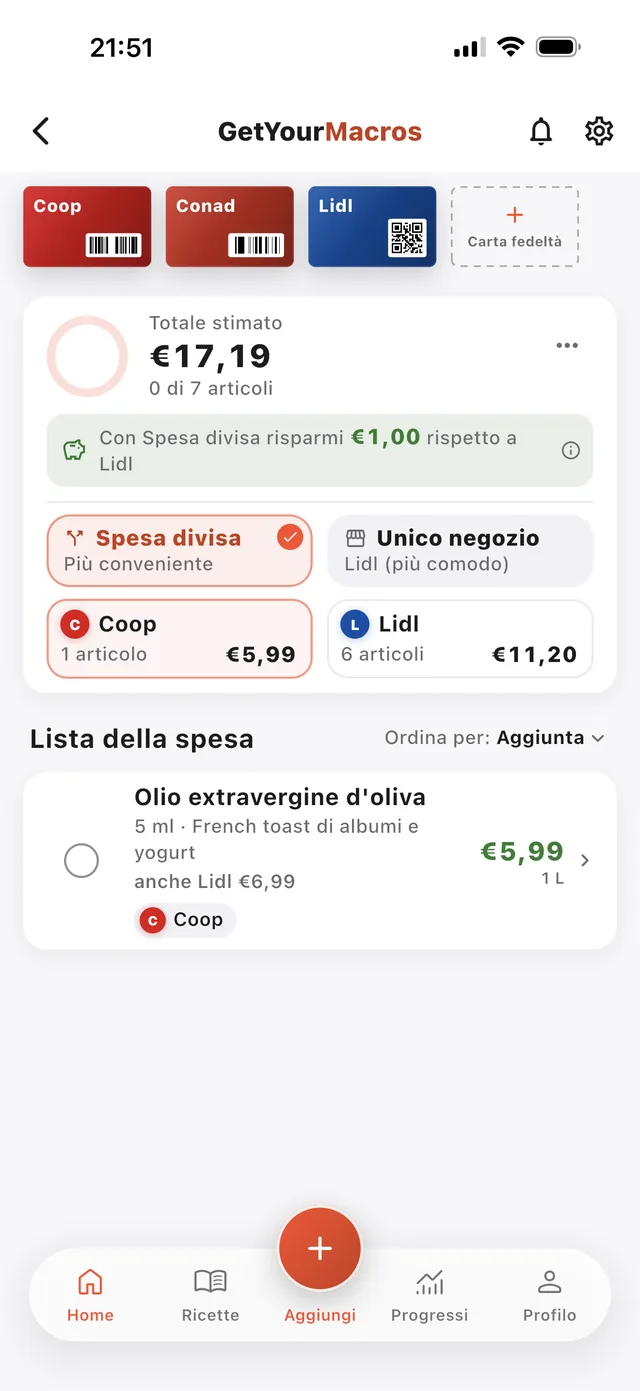
When you are happy with the plan, add the week’s ingredients to the shopping list. Quantities of the same ingredient are combined. Check the household size, select the supermarkets you actually visit and compare the list with what is already in your kitchen. This is the point to avoid duplicate purchases, before leaving home.
Two amounts need separate attention. The plan cost describes the food consumed, accounting for servings and household size. The cart accounts for the packs you need to buy. If a recipe uses only part of a pack, you still pay for the full pack at the till; the rest remains available for other meals. Your cart can therefore cost more than the plan without either calculation being inconsistent.
The cart can split items across your chosen supermarkets and compare the total with buying everything in one store. Consider the convenience of the trip too: ingredient savings do not account for your time or travel. Offers can expire, and missing prices are shown as estimates. Treat the total as a forecast to check against the shelf labels.
Supermarket price coverage currently applies to Italy. The budget guides the plan’s composition, but cannot guarantee that every combination of preferences and prices will fit: a plan that exceeds the limit is marked as over budget. For a complete example showing quantities, packs and prices, read the seven-day budget meal plan. For the cart’s features, visit the shopping list guide.
5. Check the diary before logging a meal
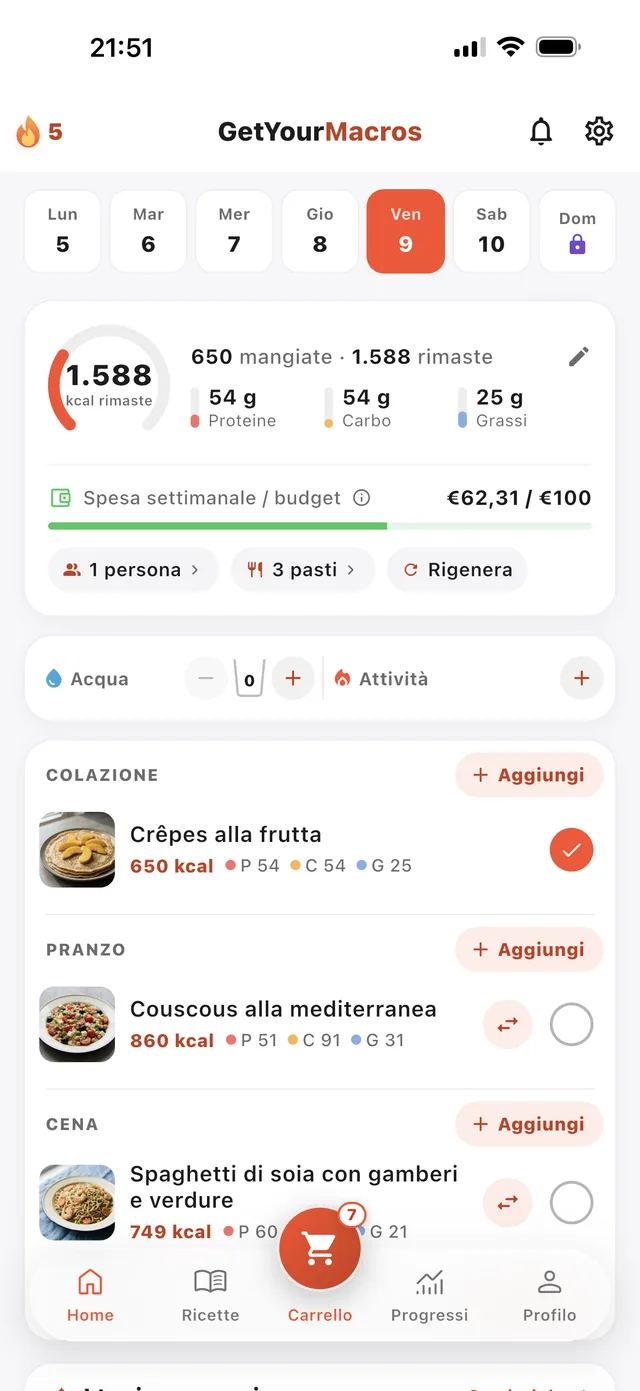
Your generated plan is added to the diary. Before logging breakfast, lunch or dinner, check whether the meal is already there on the correct date. Adding it again would count its values twice, even though you only ate it once.
The diary should reflect what you actually eat. If you prepare a different portion, replace an ingredient or eat out, adjust the corresponding entry. If you skip a planned meal, do not leave it counted as though you ate it. For extra foods, use search, barcode scanning or a meal photo; with a photo, review the estimate and identified quantities before confirming.
Read calories and macros separately. The example screen shows why: you can have calories remaining while already exceeding one of your macronutrient targets. The point is to understand what the indicators show and correct any wrong portions or duplicate entries, rather than force every indicator to line up. The calorie counter and food diary page explains the available logging tools.
Your first-day checklist
Before closing the app, check five things: your targets match the ones you want to use, the meals are practical to prepare, you are happy with your swap, the cart accounts for your pantry and the diary contains no duplicates. That completes a first run through the workflow, from a plan to ingredients to meal logging.
Over the following days, notice which recipes you actually use and which ingredients remain. That information helps you choose preferences and purchases that suit your routine. You do not need to generate another plan every time a single lunch changes.
Frequently asked questions
Can I create a flexible diet plan for free?
Yes. GetYourMacros includes your first weekly plan, then one generation per month on the free tier, plus three meal swaps per week. A weekly plan covers seven days; it does not mean the free tier generates a new plan every week.
Do my macros stay the same when I swap a meal?
No. The new recipe is adjusted to match the previous meal’s calories, but protein, carbohydrates and fat are recalculated and may change. Check the values after swapping.
Why does the shopping list cost more than the plan?
The plan counts the cost of the quantities consumed, while the shopping list accounts for whole packs you need to buy. Pantry stock, leftovers, selected stores and offers affect what you actually pay.
Should I log the planned meals in the diary myself?
Your generated plan is already added to the diary. Check the date and existing entries, adjust them to what you actually eat, and add only what is missing.
Ready to put the workflow into practice? Discover the GetYourMacros flexible dieting app.
Start for free
Download GetYourMacros, set your preferences and try your first free plan. Then review a meal, your cart and the diary using this guide.