
Save recipes from Instagram and TikTok, with calories and macros
With GetYourMacros you share the post or paste its link, and in a few seconds the recipe comes back with ingredients in grams, calories and macros per portion. It is an app to save recipes from Instagram that goes beyond a bookmark: you can save the dish or add it to a meal of the week, and its ingredients go to the shopping list. You start for free. Below you find the steps on screen, what the app reads and what it does not, and how the free and Premium credits work.
Why the recipes you save on social media never get cooked
When you bookmark on Instagram or save TikTok recipes, you keep the post, but you do not turn it into a real meal. You end up accumulating dozens of videos you never watch again.
The reason is practical. Amounts are often spoken in the video or half-written in the caption. You do not know how many calories and macros a single portion has, so you struggle to see if that dish fits your daily targets.
Then comes the organisation problem. A recipe saved in a phone folder or your notes has no place in your weekly plan. When it is time to shop, you have to open the video again, find the ingredients and write them down by hand. Without a way to send those ingredients straight to your shopping list, the recipe stays just an idea on the screen.
How to import a recipe from Instagram or TikTok, step by step
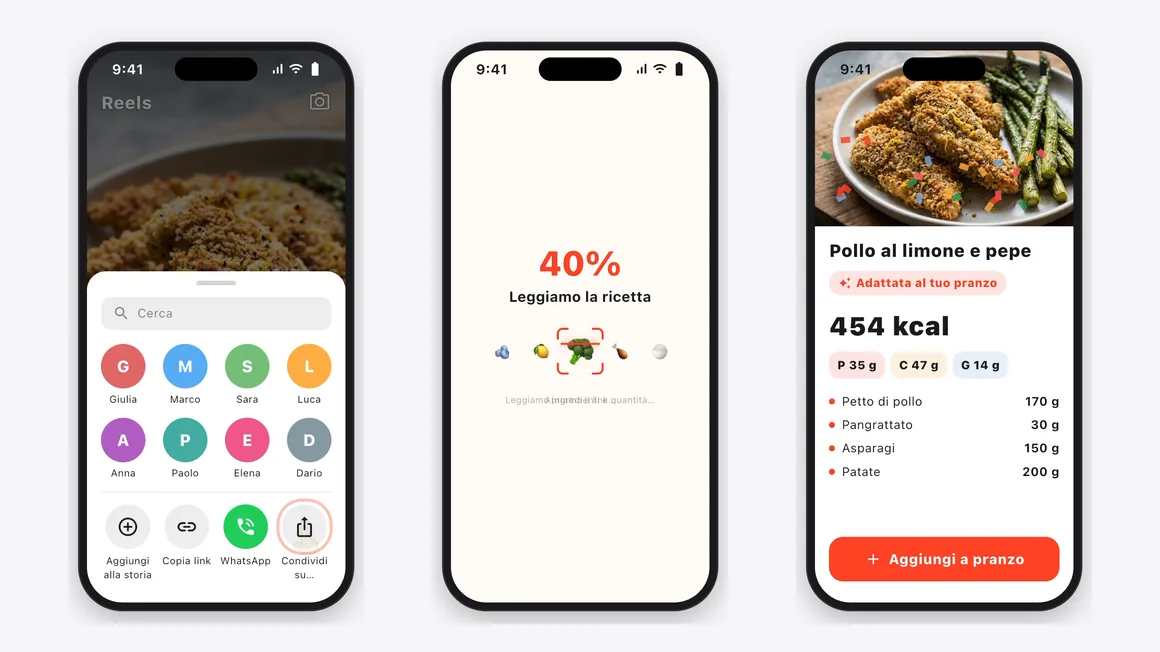
To import recipes from Instagram or TikTok takes a few taps: the post you would have saved becomes a dish with amounts, calories and macros.
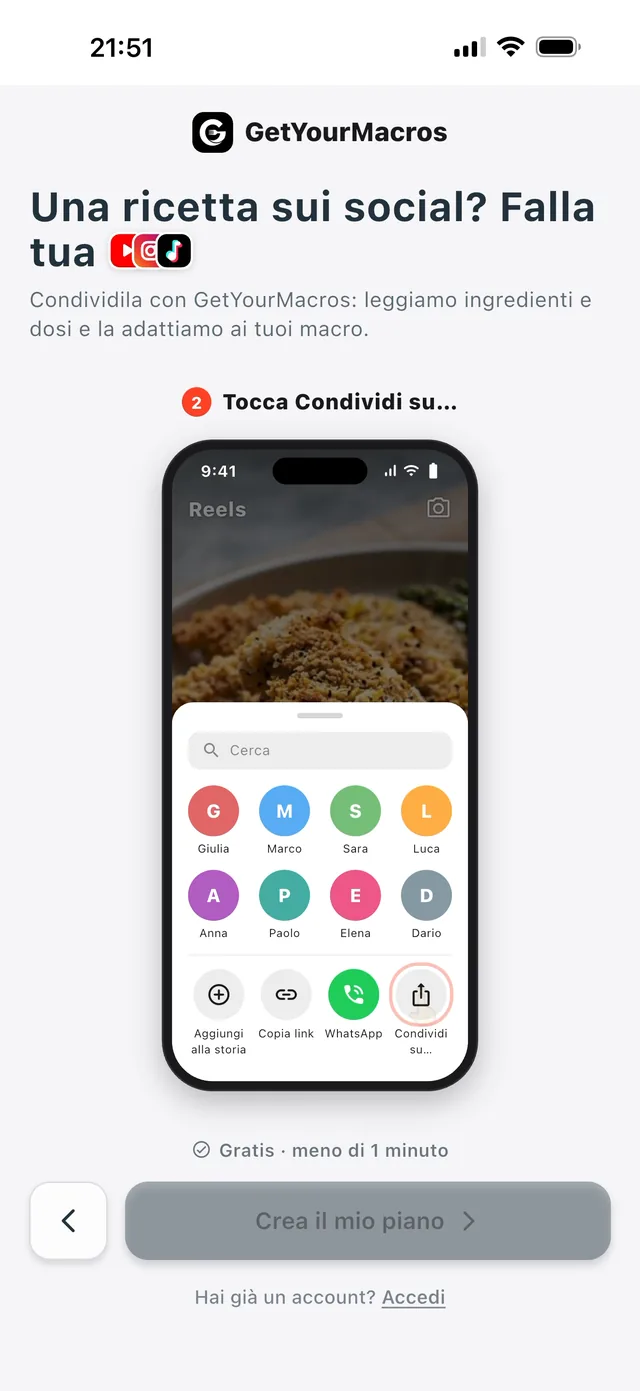
- On the social app, tap Share and pick GetYourMacros. Alternatively, copy the post's link and paste it into the "Import a recipe from a link" screen.
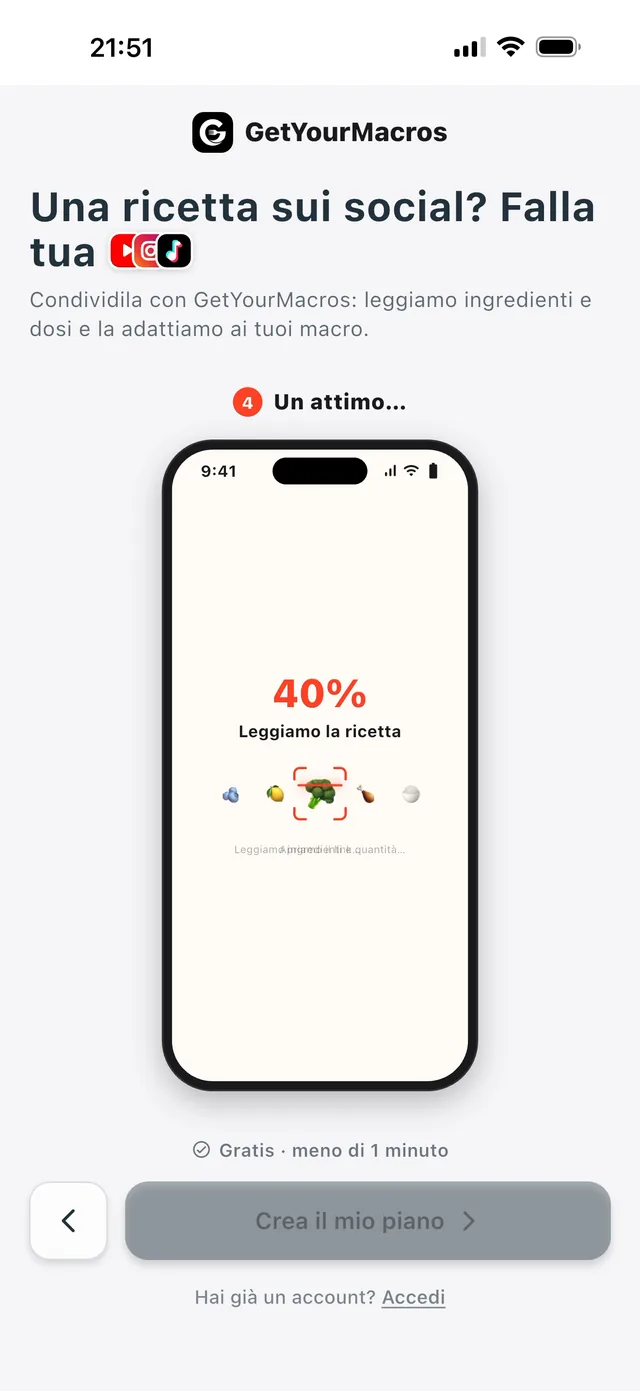
- Wait on the "Reading the recipe" screen. The app opens the link, reads the ingredients and amounts, looks them up in the food database, and works out calories and macros.
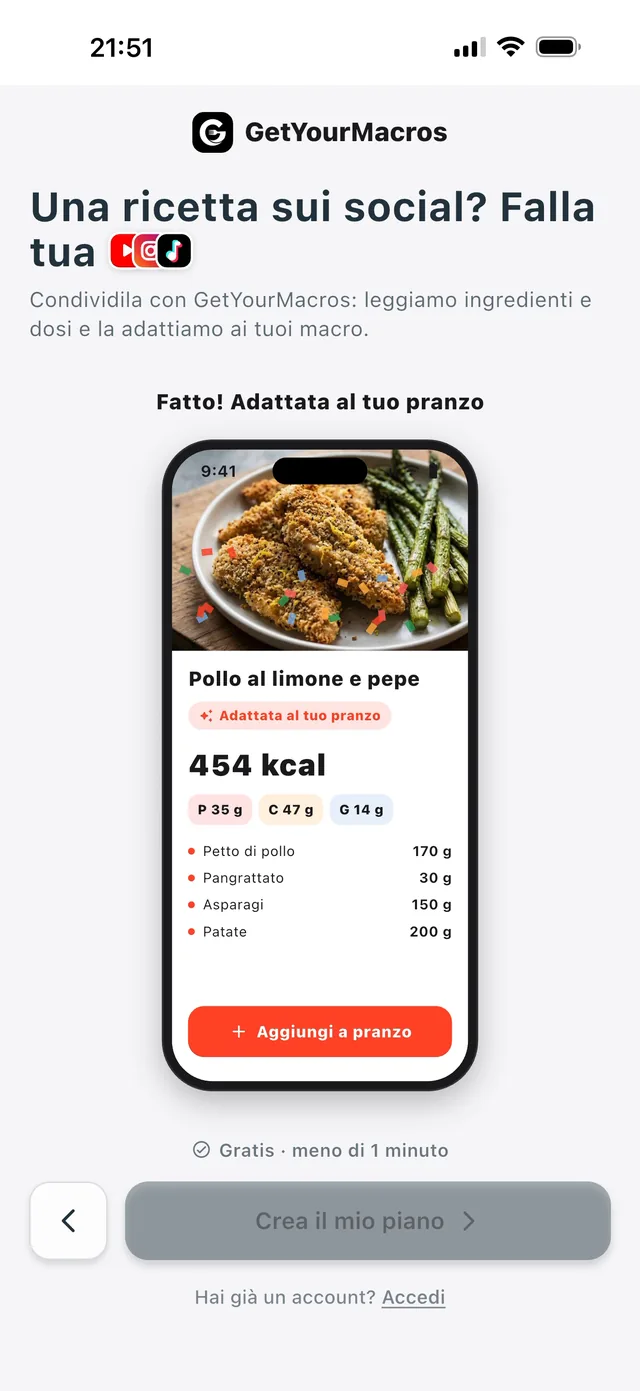
- Review the recipe. Check the title, the ingredients in grams, the steps, calories and macros.
- Choose to tap "Save to my recipes" to use it later, or "Add to a meal" to put it straight into your plan.
This also works with recipe sites and YouTube, where the app watches the video if it is up to 3 minutes long. If the recipe is not written in the post, use "Import from a screenshot". In the screenshots below, you see the Share menu and the recipe reading screen.
The recipe's calories and macros, per portion
The app uses the ingredient amounts to calculate the macros of a recipe for 1 portion. It reads the grams indicated in the post and matches each item to its food database to get the calories and macros.
From these matches, the system deduces the diet type. It recognises from the ingredients whether the preparation is omnivore, vegetarian, vegan or pescatarian. It also finds and flags any allergens present in the list.
Before saving, you review everything in the screenshot below. You have full control: you can read through the title, the steps and the grams of each food. You check the calories and macros here. Only when you are happy with the data do you decide whether to tap "Save to my recipes" or "Add to a meal" in your plan.
From the recipe to the week's plan and the shopping list
After you review the grams and macros, you can tap "Save to my recipes" to find the dish later. If you want to eat it in the next few days, choose "Add to lunch" or "Add to a meal". You pick the exact meal and how much of it you eat. The recipe is added to that meal, while the dish you already had in your meal plan stays where it is.
Putting the recipes you found on social media into the plan helps you build a more varied weekly menu. From the saved recipe's page, you can tap "Add to the list". This sends its ingredients straight to your shopping list, which is split by supermarket. That way you only buy what you need. If you start from the grams you are missing instead, the app can also generate a recipe from your macros.
What it reads and what it does not
The app watches YouTube videos directly for up to 180 seconds (3 minutes) to extract the recipe, but it handles other sources differently. When you import a link, the system looks for ingredients and steps in a specific order. If it finds no recipe, it says so and saves nothing.
Here is what it reads and the honest limits to remember:
- Text: it first reads the post's caption or the site's page.
- Screenshot: if the recipe is not in the text, it analyses the screenshot, if you gave one.
- Social videos: an Instagram or TikTok video with no recipe written in the caption is not watched. A screenshot of the recipe helps there.
- Amounts: if the caption gives amounts by eye or none at all, the grams are an estimate to check.
Is it free?
If you are looking for a free recipe saver, GetYourMacros gives you 1 AI tool a week at no cost. This credit is used to import a recipe from social media or to get calories from a dish photo. The attempt costs you nothing: the credit is only used when you save the recipe.
With Premium, you get up to 21 AI tools a week. First-time subscribers get the first week free. The rest of the app, such as the meal plan, the shopping list and the diary, is free to use.
Frequently asked questions
Is there a free app to save recipes from Instagram?
Yes, GetYourMacros gives you 1 AI tool a week for free to import. The credit is only used when you save. Tap Share on the Instagram post and pick the app, or copy the link into the "Import a recipe from a link" screen.
How do I save a TikTok recipe with the amounts?
You have 2 ways to import: from the TikTok menu or by pasting the link. The system reads the text, looks up ingredients in the food database and shows the grams. If the caption gives amounts by eye, the grams are an estimate to check.
Does the app work out the calories of a recipe I found on social media?
Each ingredient is matched to the app's food database. Calories, protein, carbs and fat are worked out from the amounts, per portion. You then choose "Save to my recipes" or "Add to a meal".
What if the post has no written recipe?
For YouTube, the app watches the video itself, up to 180 seconds. An Instagram or TikTok video with no recipe written in the caption is not watched. A screenshot of the recipe helps there.
Imported recipes sit in your week next to the ones from the Discover the GetYourMacros weekly meal plan.
Start for free
Download GetYourMacros, share the first recipe you saved and see how many calories and macros it really has.