
Loyalty cards in the app: scan once, show at the till
In GetYourMacros you scan your loyalty cards once, find them at the top of your shopping list and open each one in one tap at the till, so the scanner reads the code from your screen. The feature is free and the cards open even when the shop has no signal. Below are the exact steps to add a card, where it stays saved and what the feature does not do.

How to add a loyalty card: scan it once
You can store as many cards as you like in the app for free, with no card limit and no quota. To scan a loyalty card and keep it ready at the till, follow these steps:
- Open the shopping list and tap the + Loyalty card tile in the row at the top.
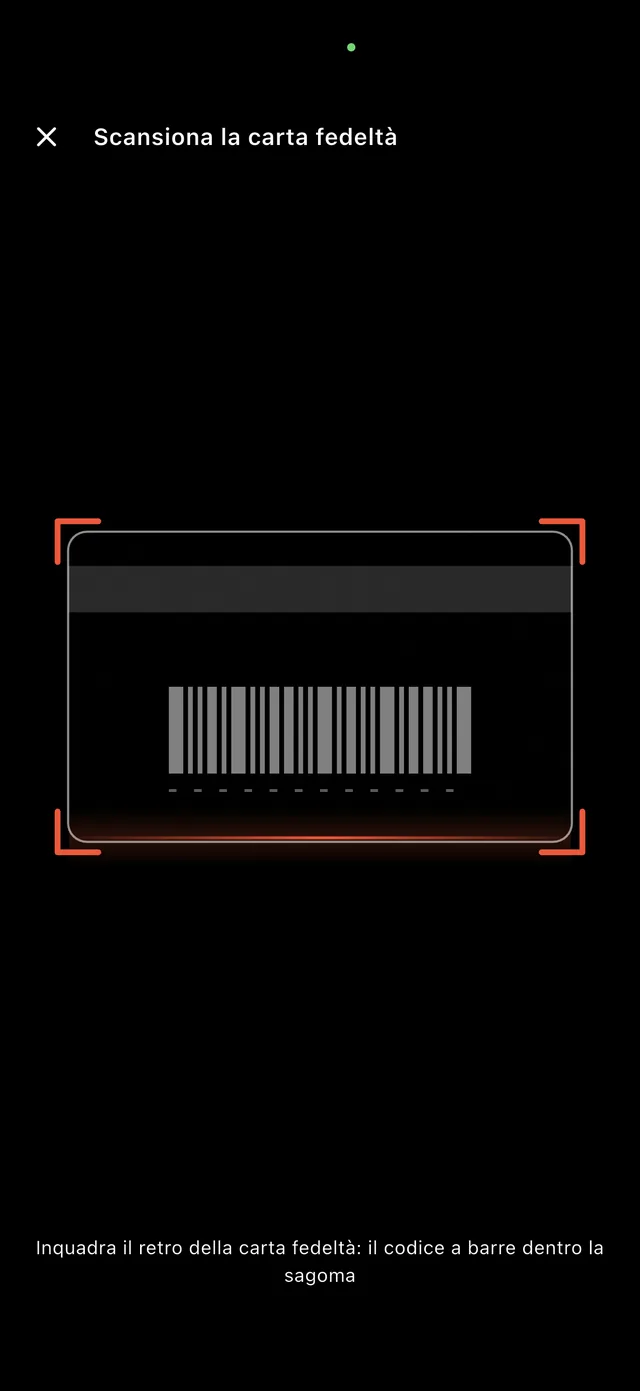
- Point your camera at the back of the card, framing the barcode.
- Type a Card name, such as "Lidl card", so the tile adopts the chain's colour.
- Tap Save to store the card in your list.
You need the physical card, or in any case a fixed barcode or QR code. The app reads and redraws formats including EAN-13, EAN-8, UPC-A, Code 128, and QR codes. The camera view appears in the screenshot below.
Where the cards live: at the top of the shopping list
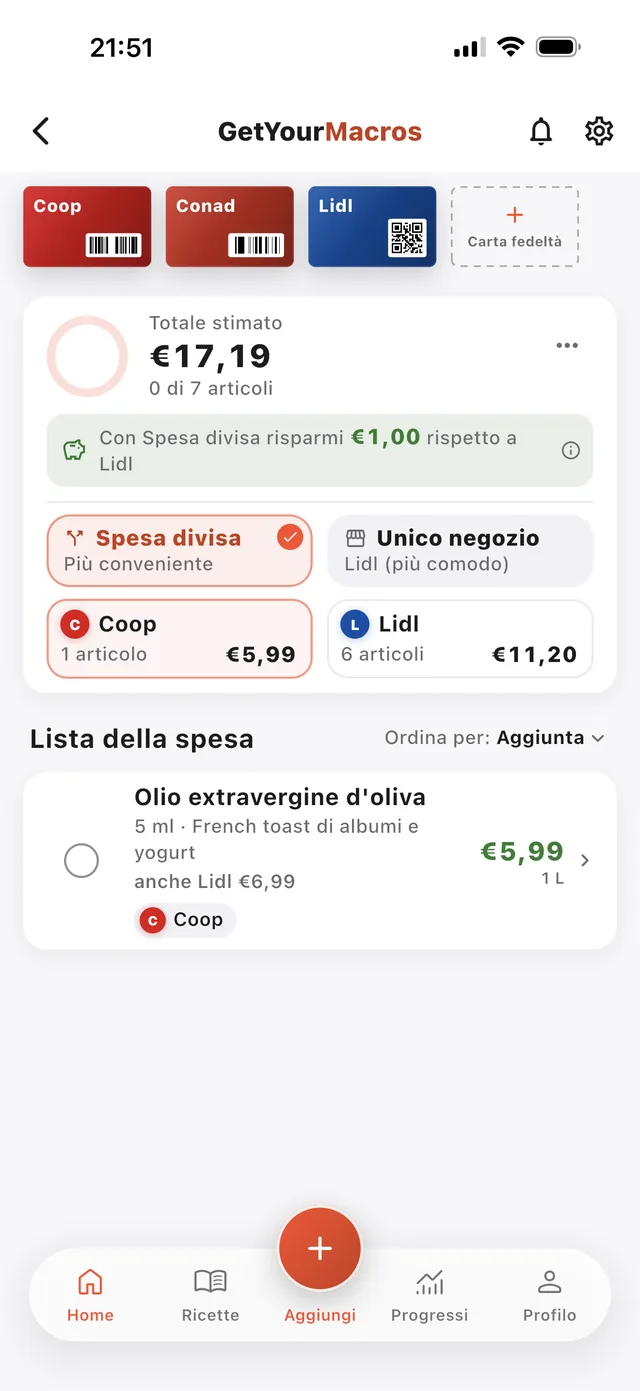
You will find your cards organised in a row of tiles right at the top of your shopping list, just above the total and the items. There is one tile per card showing its name. If you name a card after a recognised chain such as Coop, Conad, or Lidl, the tile takes that chain's colour.
The app keeps them here so you do not have to switch screens while walking the aisles. You have your ingredients, store prices, offers, and digital cards together in one place when you reach the till. The screenshot below shows the row of tiles above the list.
At the till: the barcode on screen, rename and remove
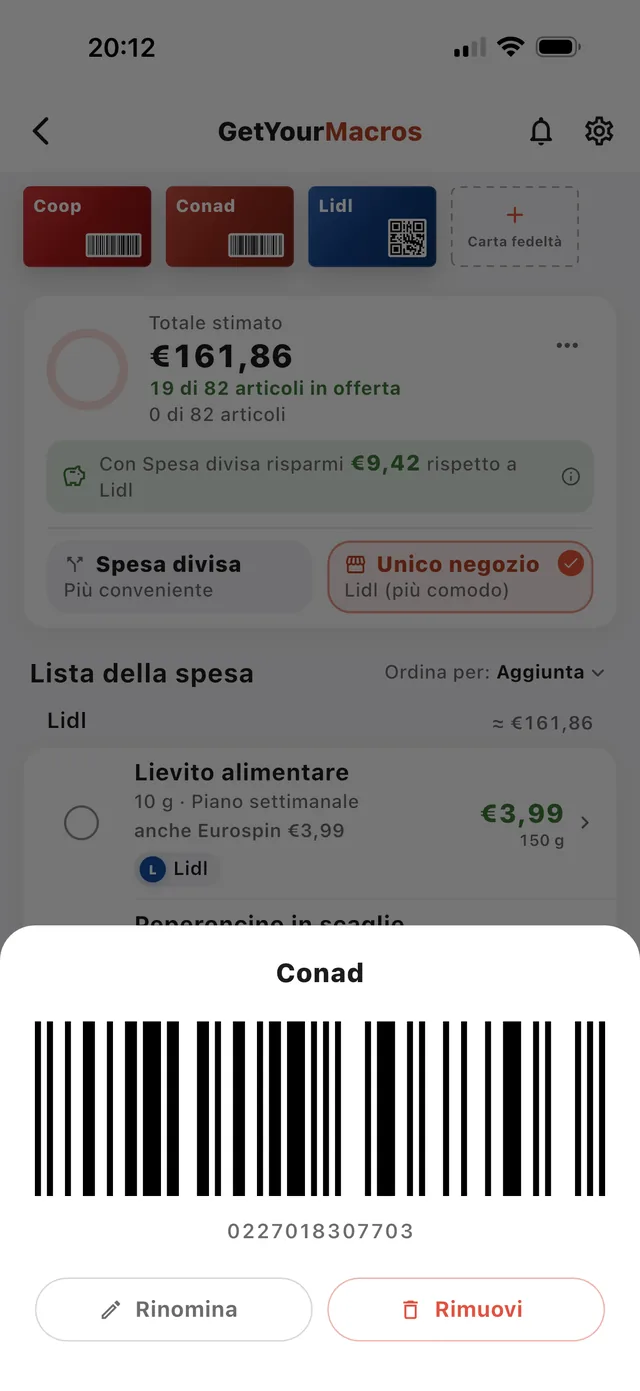
Tapping a card opens a sheet instantly with its name, the barcode redrawn large, and the number written directly below it. When you reach the checkout, hold your phone up to the till scanner. If the scanner cannot read mobile screens, the cashier can type in the number shown under the code.
Inside the same sheet, you will find options for Rename and Remove. Rename lets you update the label given to the card. If you tap Remove, the app asks for confirmation before deleting the entry and reminds you that you can always scan it again later. You can see the layout of the sheet in the screenshot below.
Cards stay on your phone and follow your account
Cards open with no internet connection inside the supermarket because they are saved directly on your phone. You will not hold up the queue at the till if the shop has poor signal or slow data. Each digital loyalty card stays available right at the top of your shopping list whenever you need it.
Your cards are also saved to your GetYourMacros account. When you sign in with the same account on another phone, your cards appear there straight away. A removed card does not come back. Your card number stays private in your account: it is not visible to other users and is not used for anything else.
What loyalty cards in the app do not do
Saved loyalty cards do not change the prices or offers in your cart. Those prices come from supermarket price lists, the flyers of chains such as Lidl, Eurospin and Conad, and community reports; where a price is missing, the app shows an estimate labelled as such.
The app keeps your barcodes ready at the till, but it is built with specific limits:
- No points or coupons: the app does not read your points balance or supermarket coupons. It does not replace the chain's own app for managing those perks.
- Fixed codes only: you need the physical card or a fixed barcode or QR code. A code that changes every time it is opened stops working at the till once saved.
- Till scanners: if a till scanner cannot read a phone screen, the cashier can type in the card number shown directly below the barcode.
Why loyalty cards belong in the shopping list
The tiles sit at the top of the cart because that is the screen you already have open in the shop. While walking down the aisles, you already have your shopping list open, divided between your chosen supermarkets with prices calculated in whole packs and badges for flyer promotions.
When you follow a budget meal plan and set up a budget diet, you can check the total per store at any point during your shop. When you reach the till, there is no need to open another app for your supermarket loyalty cards. You simply tap the chain tile to display the barcode redrawn large on your screen.
Frequently asked questions
Is the loyalty card feature free?
Yes. The feature is free, with no card limit and no quota. You can use GetYourMacros as your loyalty card app directly inside the cart, adding as many supermarket cards as you need.
Do loyalty cards work offline?
Yes, cards are saved on your phone and open with no connection inside the supermarket. They also sync to your GetYourMacros account: sign in on another phone and your saved cards appear right away.
Which cards can I save?
You can save any physical card or fixed barcode. The app reads and redraws 13 formats: EAN-13, EAN-8, UPC-A, UPC-E, Code 128, Code 39, Code 93, Codabar, ITF, QR, Data Matrix, Aztec and PDF417. The barcode opens large on the screen so the till can scan it.
Do loyalty cards change the prices in the cart?
No, loyalty cards do not change the prices or offers in your cart. Cart prices come from supermarket price lists, flyers (Lidl, Eurospin, Conad) and community reports. The app does not read your points balance or coupons, so it does not replace the supermarket's own app for those.
Loyalty cards live in the app's cart, next to the per-shop prices and the offers. Discover the GetYourMacros smart shopping list.
Start for free
Download GetYourMacros, scan your first loyalty card and take it to the till together with your shopping list.